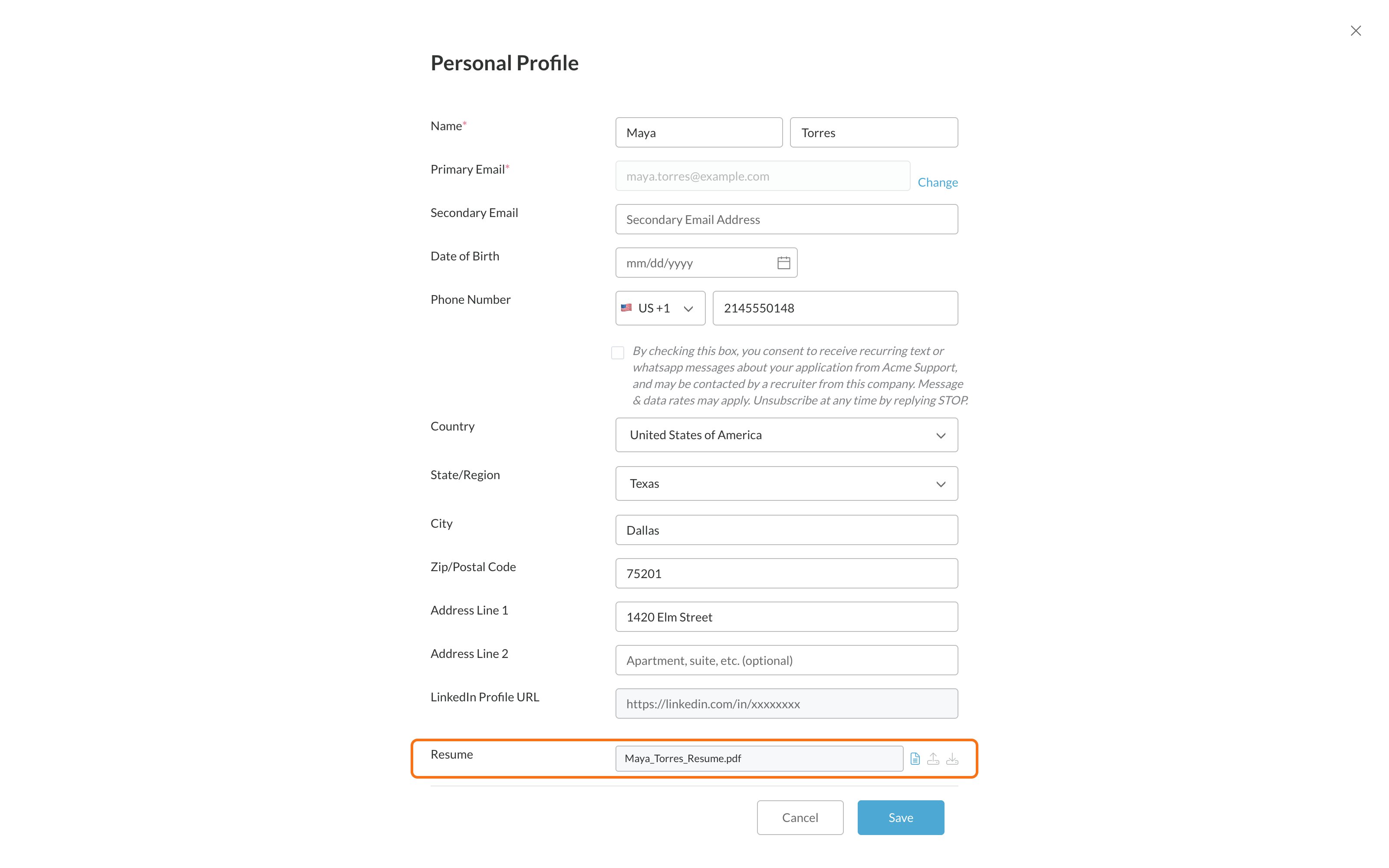
You can upload your resume in two places, and both change the same resume:
  • On the application form, while you’re applying to a job.
  • In My Profile, from the menu under your name, at any time.
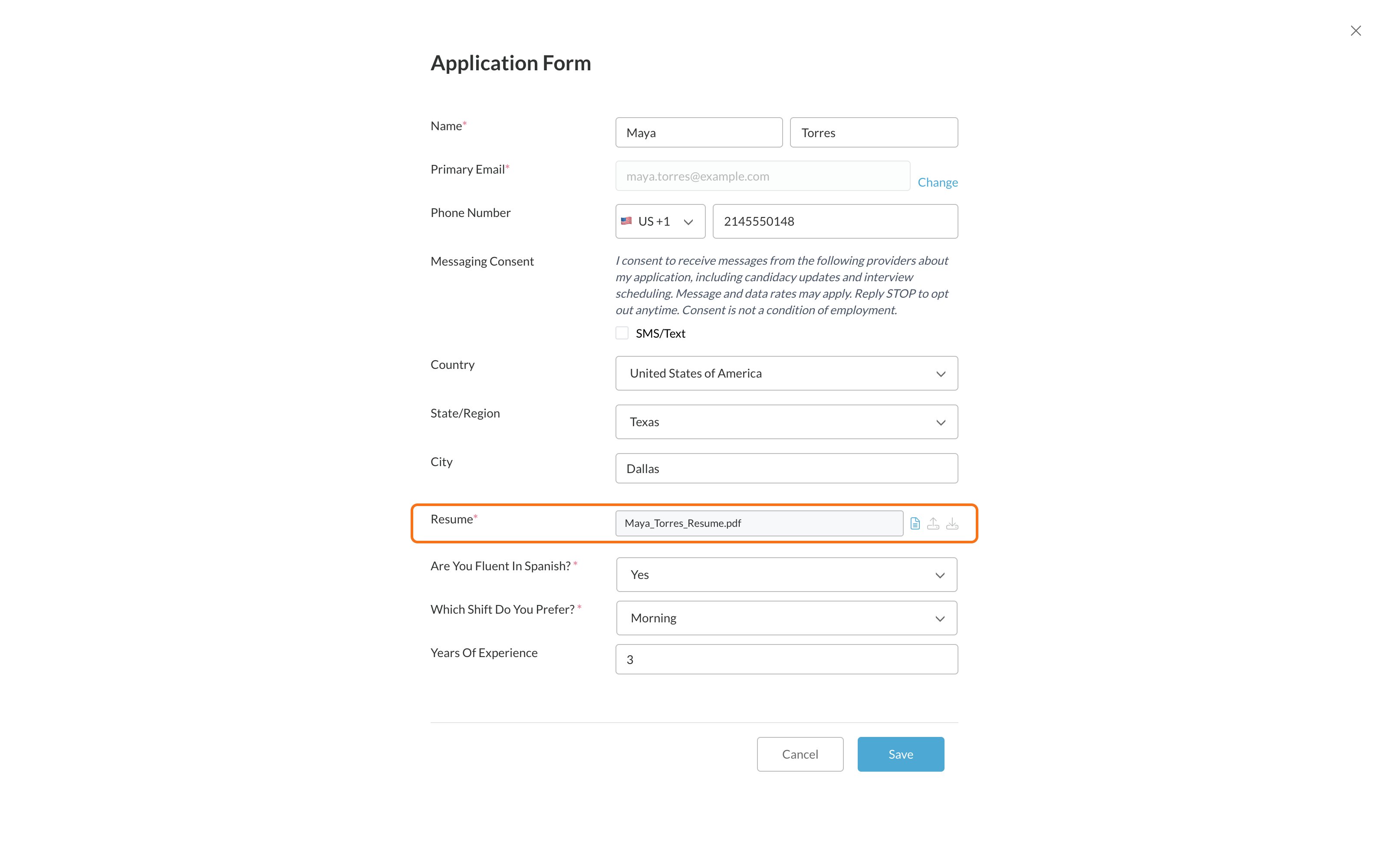
Application form with the Resume field highlighted, showing an uploaded resume file and icons to view, replace and download it
Personal Profile page with the Resume field highlighted near the bottom, showing the uploaded resume and its icons
You have one resume for all your applications. Uploading a new one replaces the old one everywhere, and every employer you applied to sees the new one.

Files that work

  • PDF
  • Word (.doc or .docx)
  • Text (.txt)
  • HTML
Files must be smaller than 10 MB. Pictures, like a photo of your resume, don’t work here. Save your resume as a PDF or Word file instead.

Upload your resume

1

Click Upload your Resume

On the application form or My Profile. Already have a resume there? Click the upload icon next to its file name instead.
2

Choose your file

Pick a PDF, Word, text or HTML file from your device.
3

Click Upload

You’ll see Upload successful. Your resume is saved now.
4

Click Close

Then finish the rest of the form and click Save.

Common problems

On a phone, your resume might be saved in an email or a cloud app. Save it to your phone’s files first, then upload it.

Update your profile

Change your information.

Stuck or can't continue?

Other fixes.